

Reference evapotranspiration (ET) can be computed for RX stations if data are available from sensors.
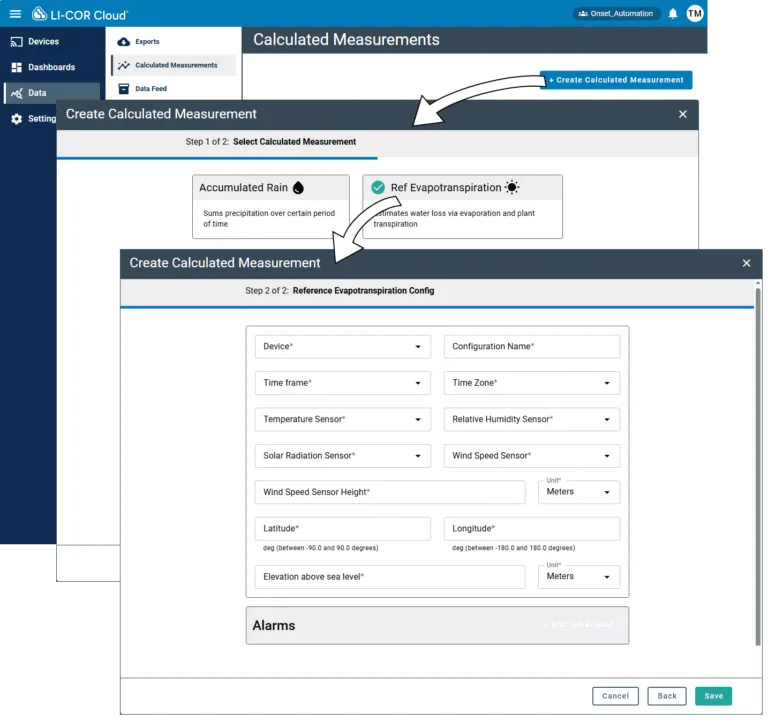
To create a calculated measurement for reference evapotranspiration:
- Select Data > Calculated Measurements and click +Create Calculated Measurement.
- Select Ref Evapotranspiration and click Next.
- Configure the settings for the measurement (see Table 5‑2).
- Save the settings.
Now you can configure alarms and view data directly on the devices tab (see Measurements) or add the calculated measurement to a Dashboard (see Creating dashboards).
Table 5‑2. Reference Evapotranspiration settings.
| Field | Required/Optional | Description |
| Device | Required | A device serial number and possibly sensor number for the measurement. LI-COR Cloud uses this name to identify the measurement. |
| Configuration Name | Required | A memorable name that can help you identify the configuration. |
| Time Frame | Required | Reference ET can be summarized either hourly or daily. |
| Time Zone | Required | The time zone where the measurement is taken. |
| Temperature Sensor | Required | Sensor that contributes the air temperature measurement. |
| Relative Humidity Sensor | Required | Sensor that contributes the RH measurement. |
| Solar Radiation Sensor | Required | Sensor that contributes the solar radiation measurement. |
| Wind Speed Sensor | Required | Sensor that contributes the wind speed measurements. |
| Wind Speed Sensor Height | Required | Height above ground for the wind speed sensor. |
| Sensor Height Units | Required | Units for the wind speed sensor height above ground. |
| Latitude | Required | Degrees between -90 and 90. |
| Longitude | Required | Degrees between -180 and 180. |
| Elevation above sea level | Required | Elevation |
| Elevation Units | Required | Units for the elevation. |
To configure an alarm for the calculated measurement, click Add Alarm in the Calculated Measurement:
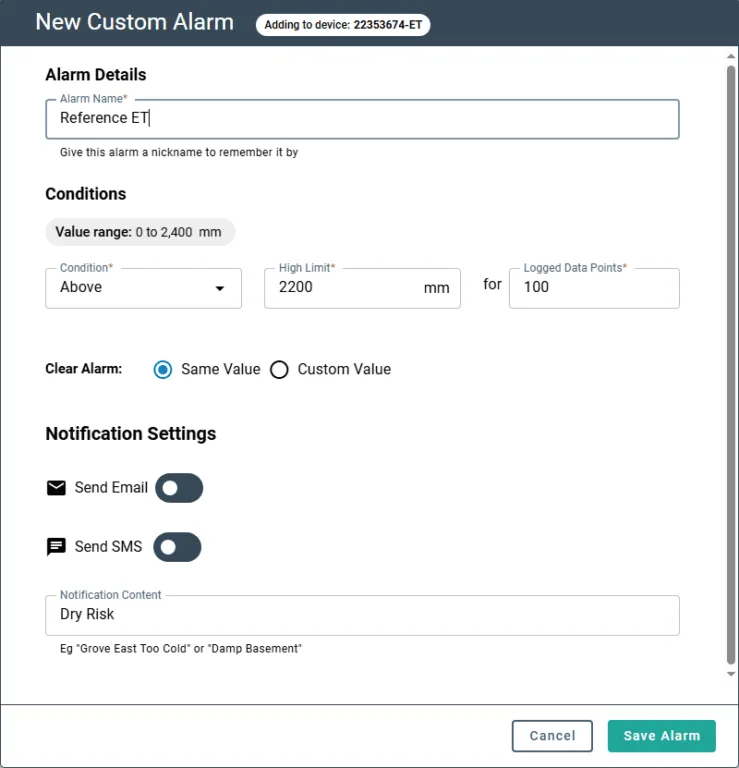
Be sure to save the settings.

